
What’s Actually Going On With This Drive
| Symptom | Likely Cause | What To Do Next |
|---|---|---|
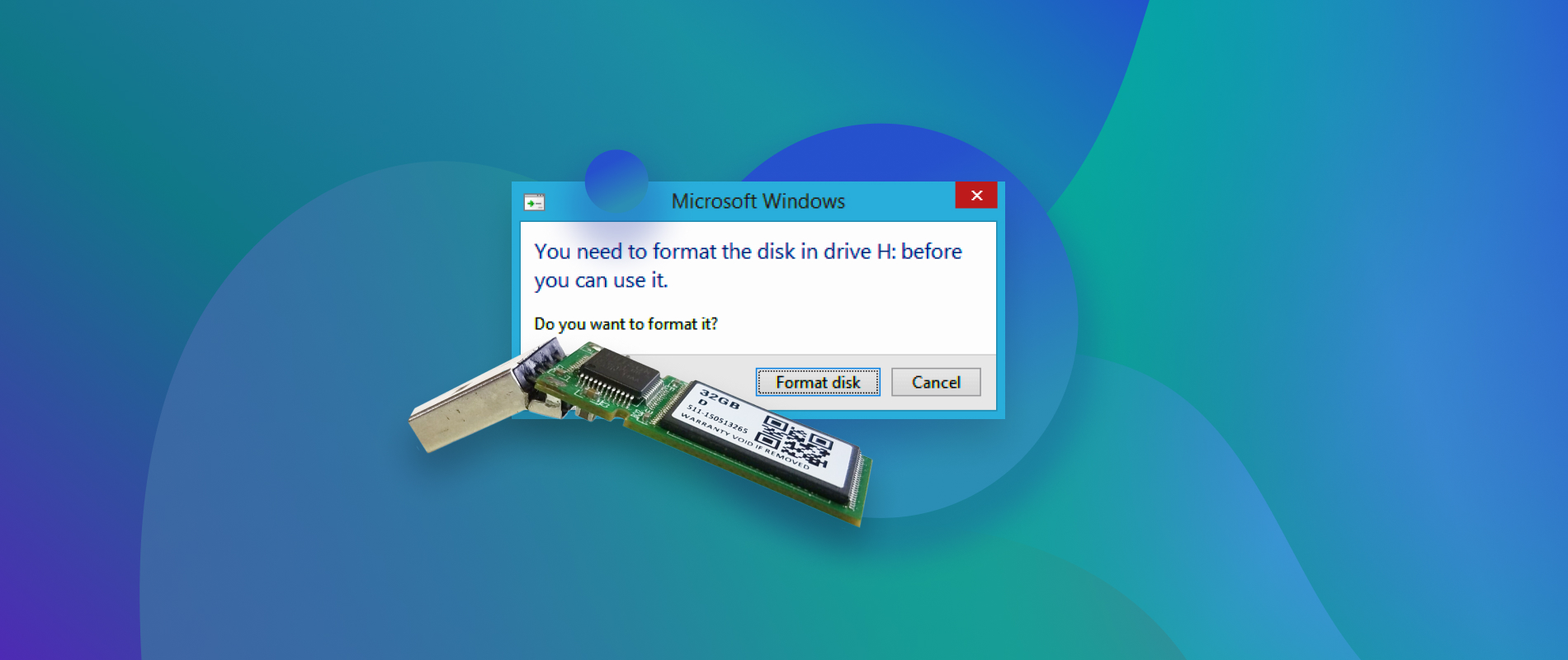
| “You need to format the disk in drive X before you can use it” | File system corrupted or unreadable, not necessarily erased | Don’t format yet. Run recovery software first; the files are often still there |
| Capacity shows far smaller than labeled (8GB reads as 30MB) after using Rufus or Media Creation Tool | Bootable-drive tool left an ISO-sized partition layout | Check Disk Management before reformatting; recovery software can usually still see the original files |
Ran diskpart clean |
Partition table erased; underlying data typically untouched | Stop immediately, run recovery software, don’t create a new partition yet |
| Ran a normal (quick) format by mistake | File-system pointers removed, data physically intact | High recovery odds if the drive hasn’t been written to since; scan now |
| Ran a full (non-quick) format | Zeros written across the whole drive since Windows Vista | Recovery odds drop sharply; a scan is still worth trying, but expect partial or no results |
| Drive isn’t detected at all, or clicks/disconnects repeatedly | Possible controller or physical failure | Skip DIY software and go straight to professional recovery |
How Likely Is Recovery, Really
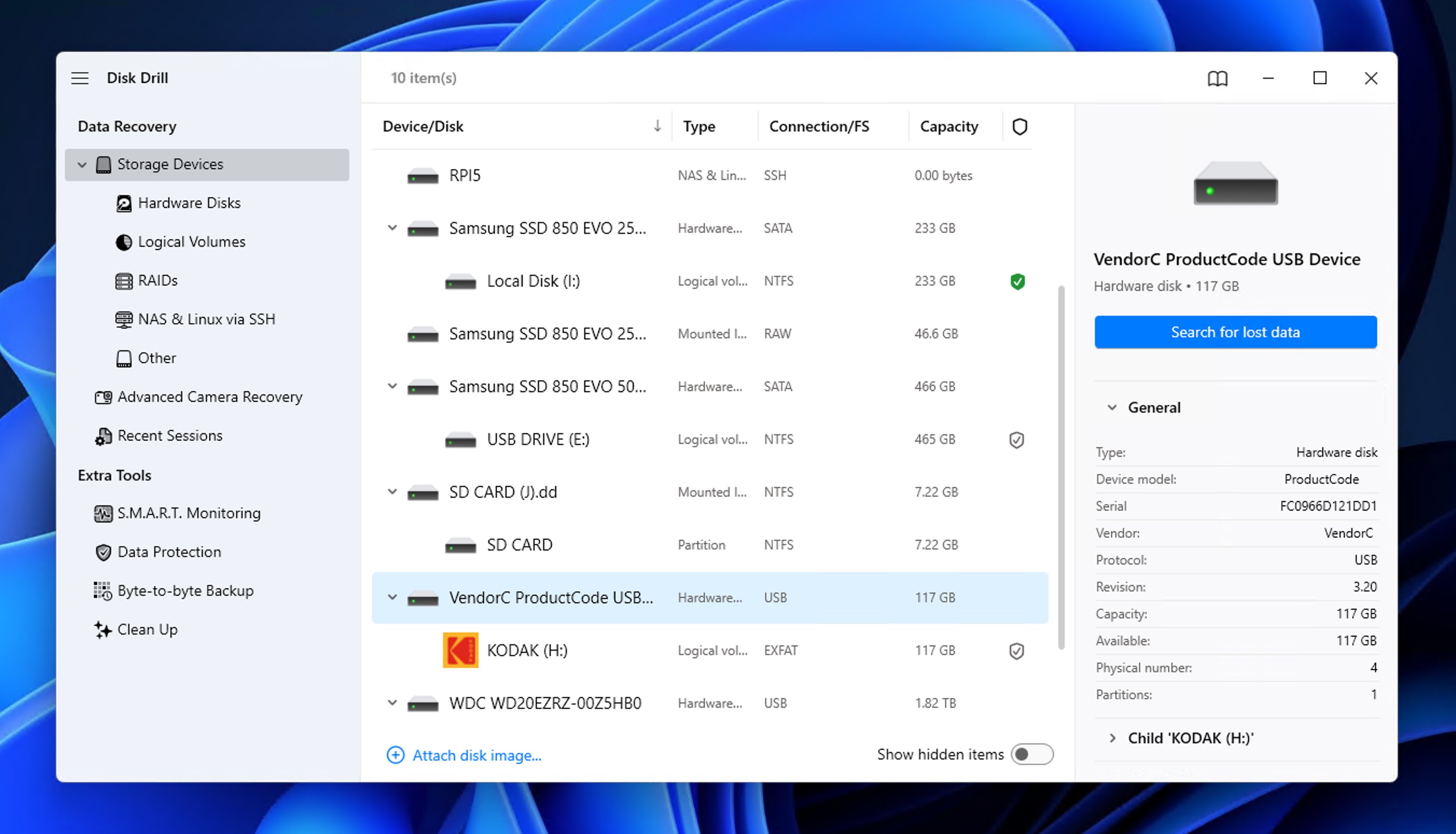
Recovery odds hinge on three named variables: format type, how much has been written to the drive since, and whether a new file system has since been created on it. A quick format on an untouched drive gives recovery software a nearly complete map to work from. A full format, by contrast, has already overwritten the data with zeros before any recovery attempt starts. No independent, controlled study publishes a percentage tying consumer USB recovery software’s success rate to these variables, so this page won’t invent one; the diagnostic table above is the honest substitute for a number that doesn’t exist.
Recovering Files With Software
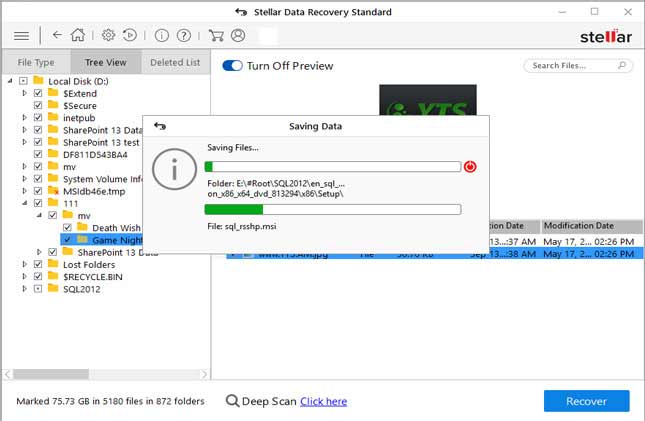
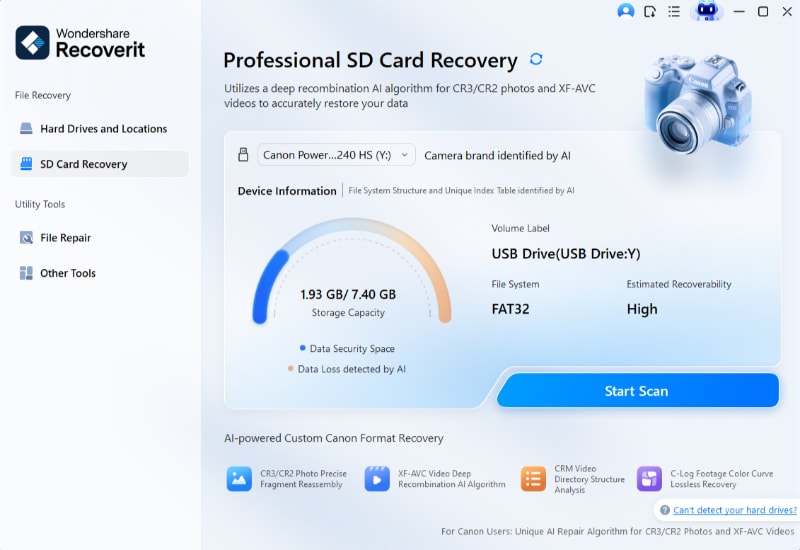
What determines success here is whether the tool scans raw sectors instead of just the visible file table, not which brand’s logo is on the download page.
- Stop writing to the drive immediately. Every new file saved risks landing in the same physical space as a deleted one.
- Connect it as a secondary drive. Never recover files back onto the drive being scanned.
- Pick software that does a raw sector scan, not just a visible-file-table read.
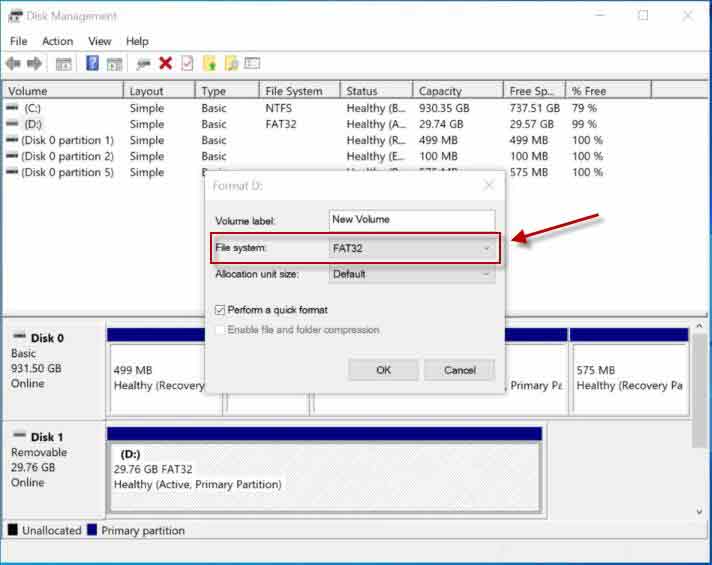
- Select the drive by capacity, since a formatted drive frequently shows the wrong label or no label at all.
- Run a full or deep scan if a quick scan comes back empty; quick scans only check the file-system remnants that a full format has already erased.
- Preview files before recovering to confirm they open correctly, not just that the filename looks right.
- Recover to a different physical drive.
Does it matter which recovery tool is used? Less than the marketing suggests. What matters is whether the tool performs a raw sector scan and allows a preview before recovery. Vendor-claimed success rates aren’t measured against the variables that actually determine recoverability, so they’re worth treating with skepticism rather than as a selection criterion.
Why Flash Drives Are More Time-Sensitive Than Hard Drives
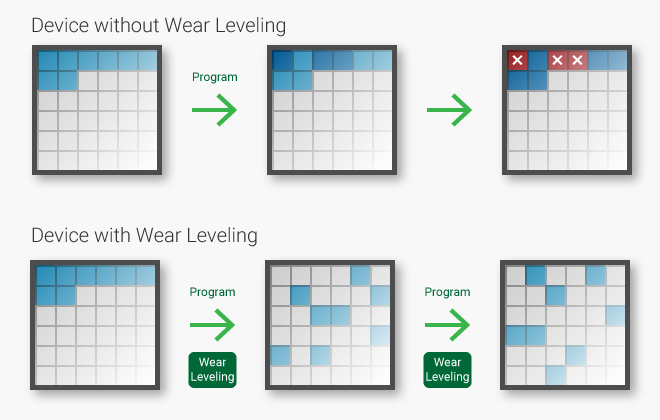
A flash drive’s controller performs wear leveling on every new write, spreading writes across NAND cells so no single cell wears out first. Most plain USB flash drives don’t implement the TRIM command the way SSDs do, so the background erasure of “freed” blocks that happens on a TRIM-enabled SSD generally doesn’t apply to a thumb drive sitting idle. What still applies is that any new write triggers wear leveling, and wear leveling physically relocates data on the chip, including data adjacent to whatever is being freshly written. Plugging the drive in “just to check” and saving even one small file can move data the same way a deliberate overwrite would.
The “10,000 to 100,000 erase cycles” figure that gets repeated for flash endurance is real, but it applies to SLC memory specifically. TechTarget’s write-endurance figures put MLC around 10,000 cycles and TLC, the type used in most inexpensive consumer sticks, around 3,000. A cheap drive both wears out faster and relocates data on a smaller number of writes than the commonly cited range implies.
Exceptions: When This Advice Doesn’t Apply
Encrypted or BitLocker-protected drives. Microsoft’s BitLocker recovery documentation describes several recovery paths – the recovery password, the recovery key, the key package used with the repair tool, and a Data Recovery Agent certificate – and every one of them operates on an intact BitLocker volume. None of the documented paths cover a volume that’s already been reformatted; the recovery key unlocks encryption, it doesn’t rebuild a partition structure that’s gone.
Full-format or zero-fill. Already covered above: if zeros were written across the drive, there’s little left to scan for.
Physical damage. A drive that clicks, disconnects on its own, or gets warm to the touch during normal use has a hardware problem no recovery software will fix.
Can a full-formatted or zero-filled drive be recovered? Generally no. Zeros written to the physical NAND cells overwrite the data those cells held; there’s nothing left for scanning software to reconstruct.
Common Mistakes That Make Recovery Worse
- Running
chkdsk /fon a drive meant for recovery. Chkdsk repairs file-system errors by rewriting directory structures, which can overwrite the very data being sought. - Running
diskpart cleanor reformatting before scanning. Either one is a new write event on the drive. - Recovering files back onto the drive being scanned. This writes new data into the exact space still holding deleted files.
A drive that has already had chkdsk /f run against it isn’t a lost cause, but a raw sector scan is now competing with whatever directory rewrites chkdsk already made.
Reformatting the Drive Properly
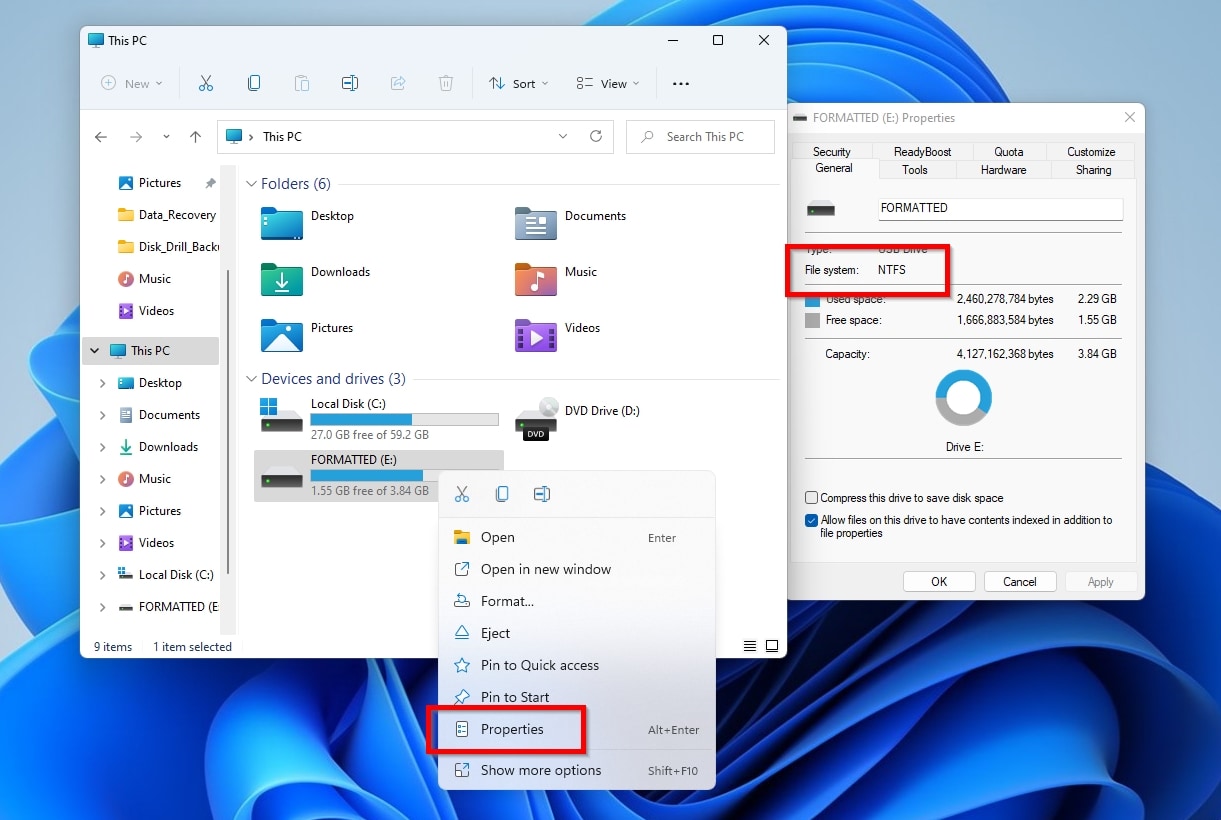
Reformatting solves a different problem than recovery: it’s for a drive that’s RAW, corrupted, or being repurposed, not one being scanned for lost files. Recovery should happen first if the data matters, since reformatting is itself a new write event.
| File System | Best For | Key Limitation |
|---|---|---|
| FAT32 | Older devices: car stereos, game consoles, budget cameras | 4GB single-file size limit |
| exFAT | Cross-platform transfer of large files between Windows and macOS | Weaker directory-structure recovery than NTFS if corrupted |
| NTFS | Windows-only workflows needing permissions or compression | Not natively writable on macOS without third-party software |
The 4GB ceiling on FAT32 is a per-file limit, not a drive-capacity limit, which is why a 64GB FAT32 stick can still reject a single 6GB video file while having plenty of free space. Microsoft began raising a related but separate FAT32 restriction in 2026: Windows 11 Insider Preview Build 26220.8165, released April 10, 2026, increased the command-line FAT32 formatting ceiling from 32GB to 2TB, though the 4GB per-file limit was left unchanged.
This drive was formatted to the wrong file system. Can it be switched back without losing data again? Not without another format. Recover any needed files first, then reformat to the correct file system; there’s no way to change file systems in place without a new format event.
Is DIY recovery risky? Could it make things worse? Running software that only reads the drive carries low risk. The risk comes from repair commands like
chkdsk /f, from formatting before scanning, or from saving new files to the drive while deciding what to do next.
When to Stop and Call a Professional
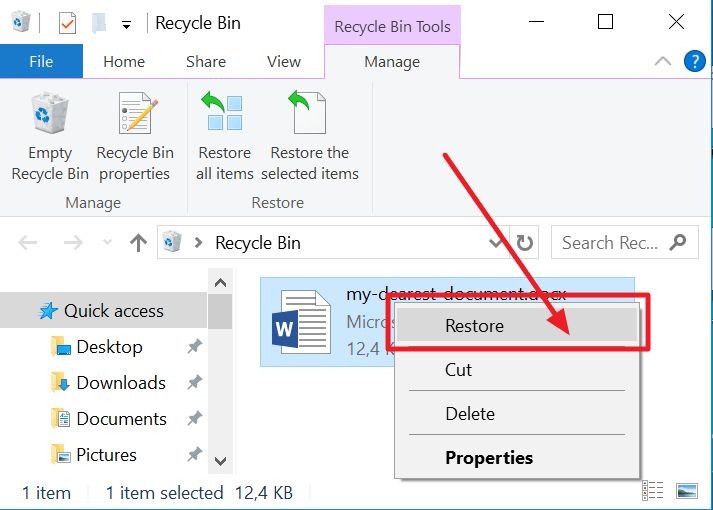
- The drive isn’t detected at all, not even in Disk Management or Disk Utility.
- There are physical damage signs: clicking, intermittent disconnects, unusual heat.
- It’s an encrypted container without the key or password.
- The data is high-value or irreplaceable and a DIY attempt would be the only chance.
Preventing This Next Time
Back up to two locations independent of the drive itself before formatting anything. Label drives by capacity as well as by name, since a mislabeled or unlabeled drive is a common reason people format the wrong one.