
| Method | What it does / when to use |
|---|---|
| Restore from a platform backup (File History, Time Machine) | No risk to the card; only works if backup was already running before the format |
| Dedicated recovery software (free or paid) | Scans the card’s raw data for file signatures; free tiers cap how much you can save, see the table below before scanning |
| Command-line tools (Windows File Recovery, PhotoRec) | Free and thorough, command-line only; CHKDSK is not one of these, it repairs the file system rather than restoring deleted files |
| Professional or forensic recovery service | For physically damaged or undetected cards, and for regulated business data |
Diagnose Your Situation First
Format type. Quick Format and Mac’s standard Erase rewrite the directory that tells the file system where each file lives, and mark the space as free. A Full Format, a secure erase, or a device’s own low-level wipe writes new data across the storage, a fundamentally less recoverable operation.
File system and card type. The SD Association ties file system to capacity class: SDHC cards, 2GB to 32GB, use FAT32; SDXC and SDUC cards, 32GB and up, use exFAT. The NTFS-versus-FAT distinction that dominates hard-drive recovery guides barely applies here, because a stock SD card is essentially never NTFS.
Device source. A card formatted by a camera, drone, or phone behaves the same as one formatted by a computer: index rewrite, data likely intact. One claim about a manufacturer-specific low-level erase command triggered by certain devices could not be verified against a primary source, so it’s left out here rather than repeated as fact. If you know your device performs a documented secure wipe, treat that card as a full-format case.
Physical condition. A card that won’t mount, clicks, or was bent or submerged needs the professional path in the “Stop DIY” section, not another consumer scan; software recovery assumes the card is readable in the first place.
- Quick or standard format? Recovery is plausible.
- Full, secure, or device wipe? Treat recovery odds as low.
- Written to since the format? Anything written after the format may already be gone.
Immediate Steps to Take Right Now
- Stop shooting or saving to the card. New files risk overwriting what you’re trying to recover.
- Flip the physical write-protect switch. Full-size SD cards carry a small lock tab on the left edge. Sliding it to “Lock” makes the card read-only at the hardware level: a zero-cost step most guides mention once and never turn into an actual instruction.
- Use a card reader, not the original camera or phone. Many devices write thumbnail caches the moment a card is reinserted.
- Install recovery software on your computer’s main drive, never on the card. Point the software at the card as the source only.
Can I still recover files if I’ve already shot new footage on the card?
Partially, in most cases. Files the new footage physically overwrote are gone; files it didn’t reach are still recoverable. Stop shooting immediately and scan before assuming anything is unrecoverable, since the software will show which files are still intact.
Recover on Windows
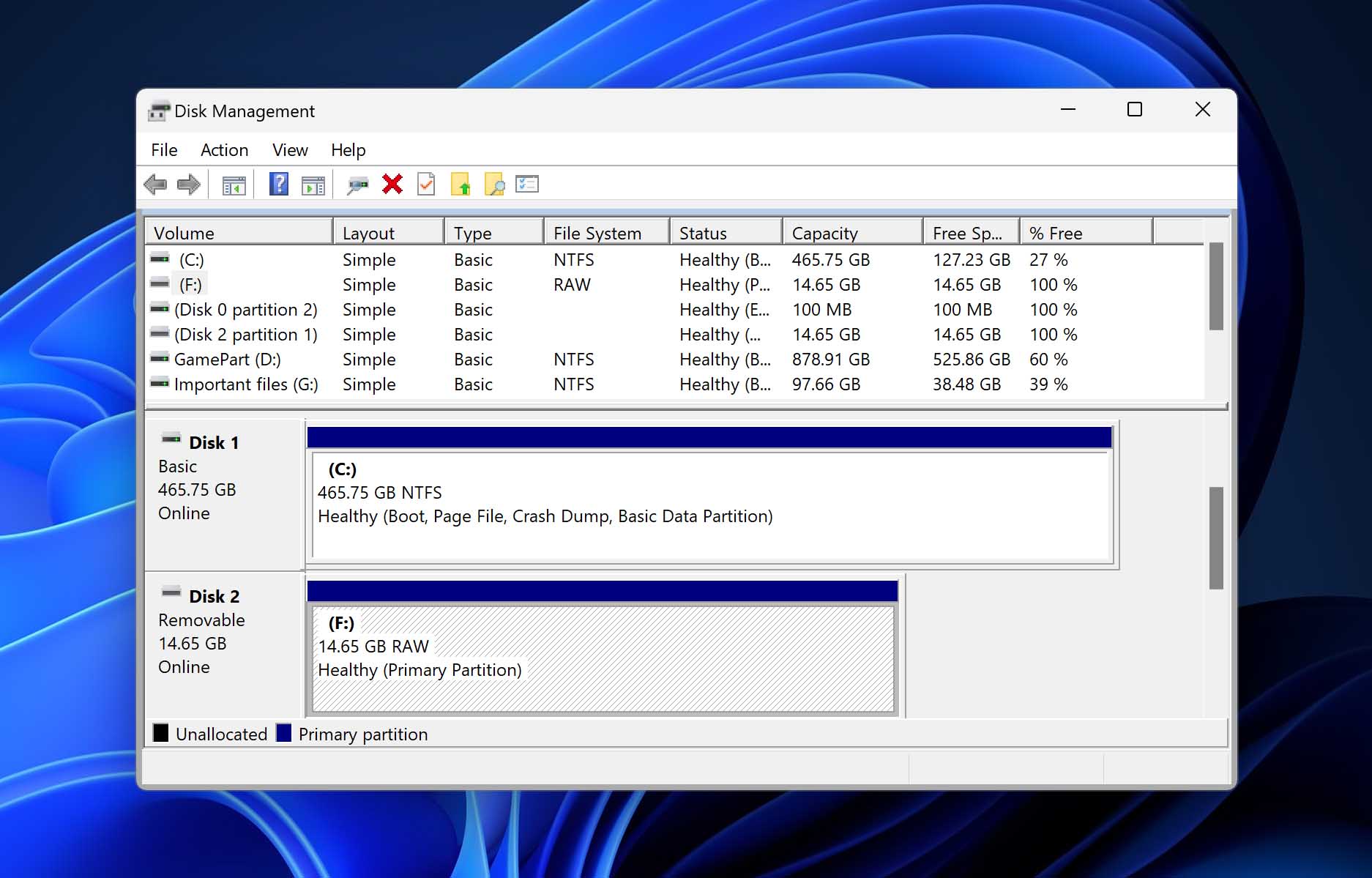
Right-click the card in File Explorer and check Properties for the file system before you start. That tells you whether you’re dealing with FAT32 or exFAT, which determines which mode of Windows’ own recovery tool applies.
Restore from a File History backup
If File History was already turned on before the format, go to File Explorer, right-click the folder that used to hold your files, and choose Restore previous versions. This only helps if backup was active beforehand; it can’t be enabled retroactively.
Use recovery software
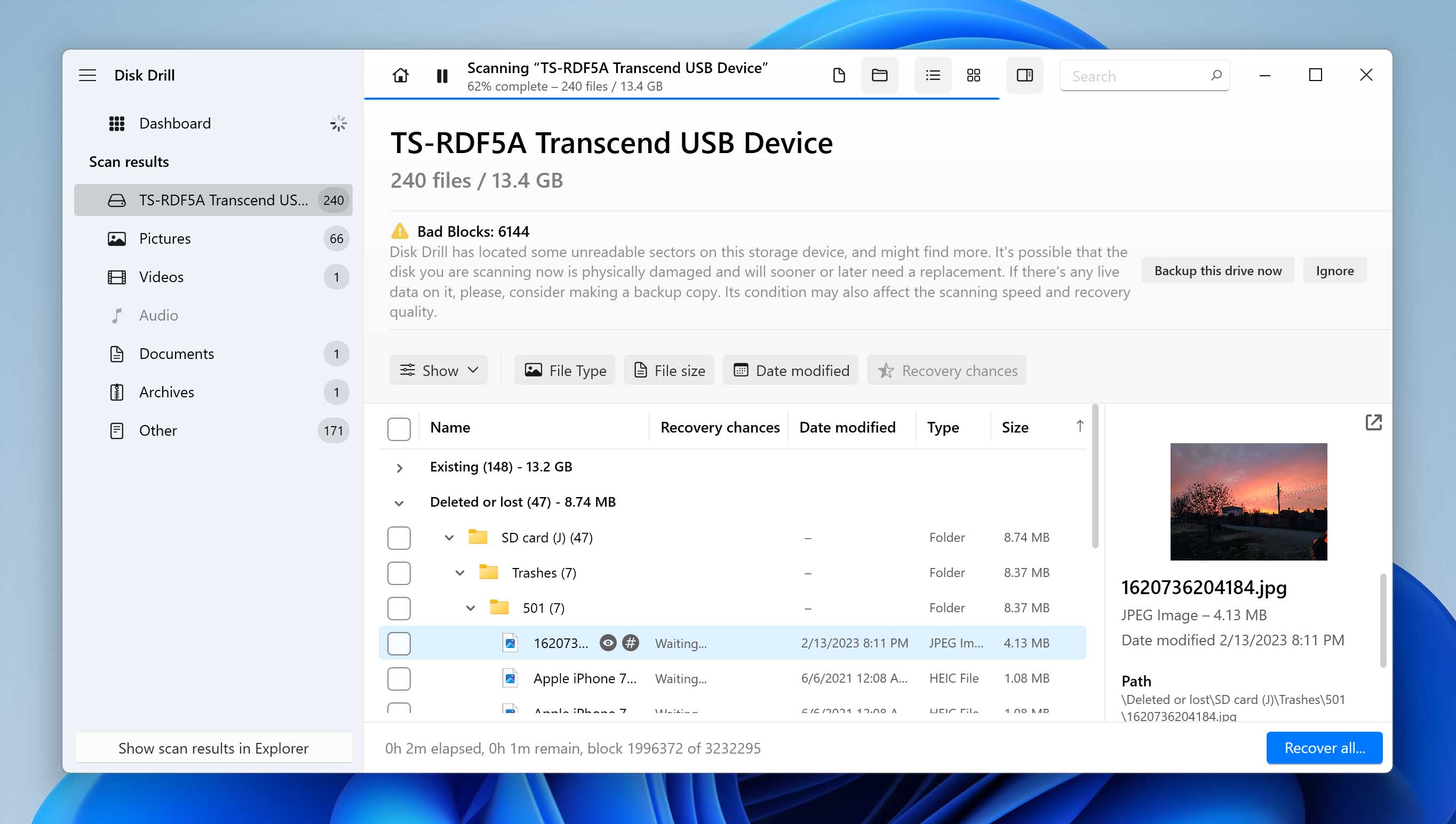
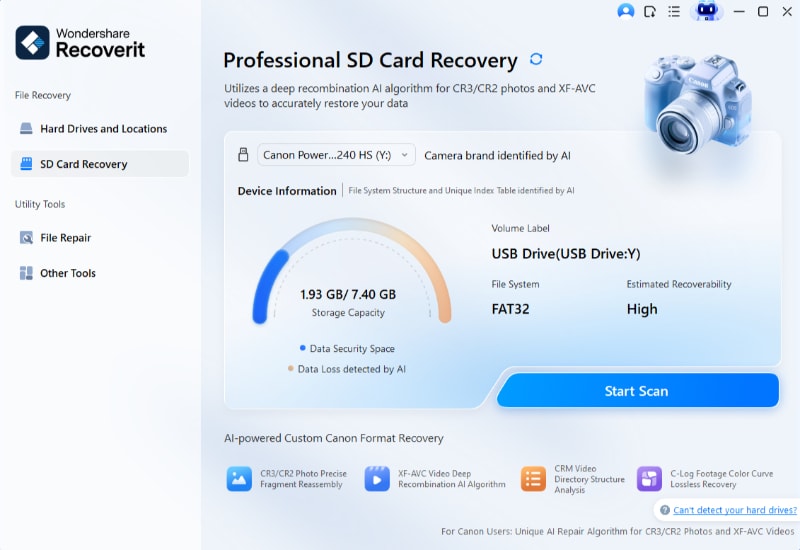
Install a recovery tool on your PC’s main drive, scan the card, and preview results before recovering anything. Check the free-tier limit in the table further down before you scan, so a capped result doesn’t surprise you mid-recovery.
Use Windows File Recovery (winfr)
Microsoft’s free command-line recovery tool requires Windows 10 version 2004 or later, or Windows 11, installed through the Microsoft Store; there is no graphical interface. Regular mode only supports a healthy NTFS drive, which rules it out for almost every SD card. You need Extensive mode, which covers FAT and exFAT. A basic command looks like winfr E: D: /extensive /n *.jpg to pull JPEGs from an E: card to a D: destination folder; source and destination must be different drives.
Is running CHKDSK actually recovering my files?
No. CHKDSK repairs file-system errors and can make an unreadable card mountable again, but it doesn’t restore deleted or formatted-away files, and running it can write over the exact space your files occupy. Scan with a recovery tool first; run CHKDSK afterward, if at all.
Recover on Mac
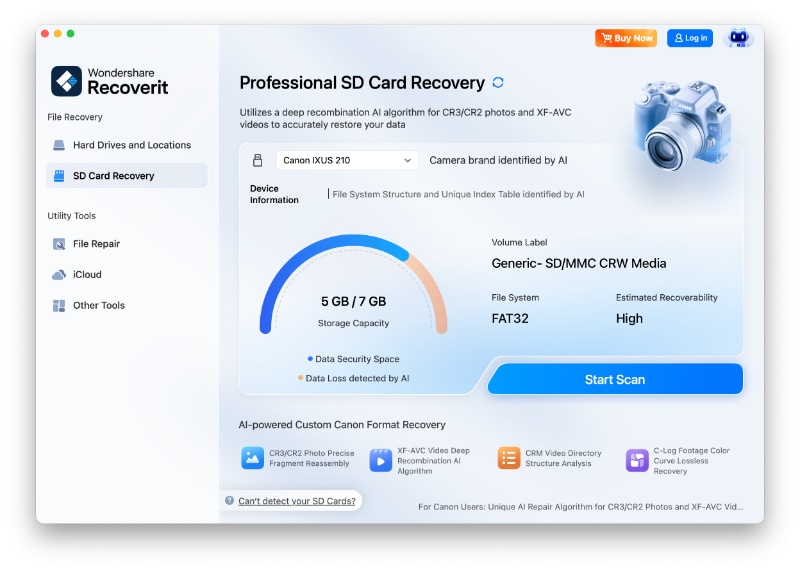
Select the card in Disk Utility and check the format shown before choosing a method.
Restore from Time Machine
If Time Machine was enabled before the format, use the Time Machine interface, or right-click the folder in Finder and choose “Browse Time Machine Backups.”
Recovery software and Terminal-based recovery
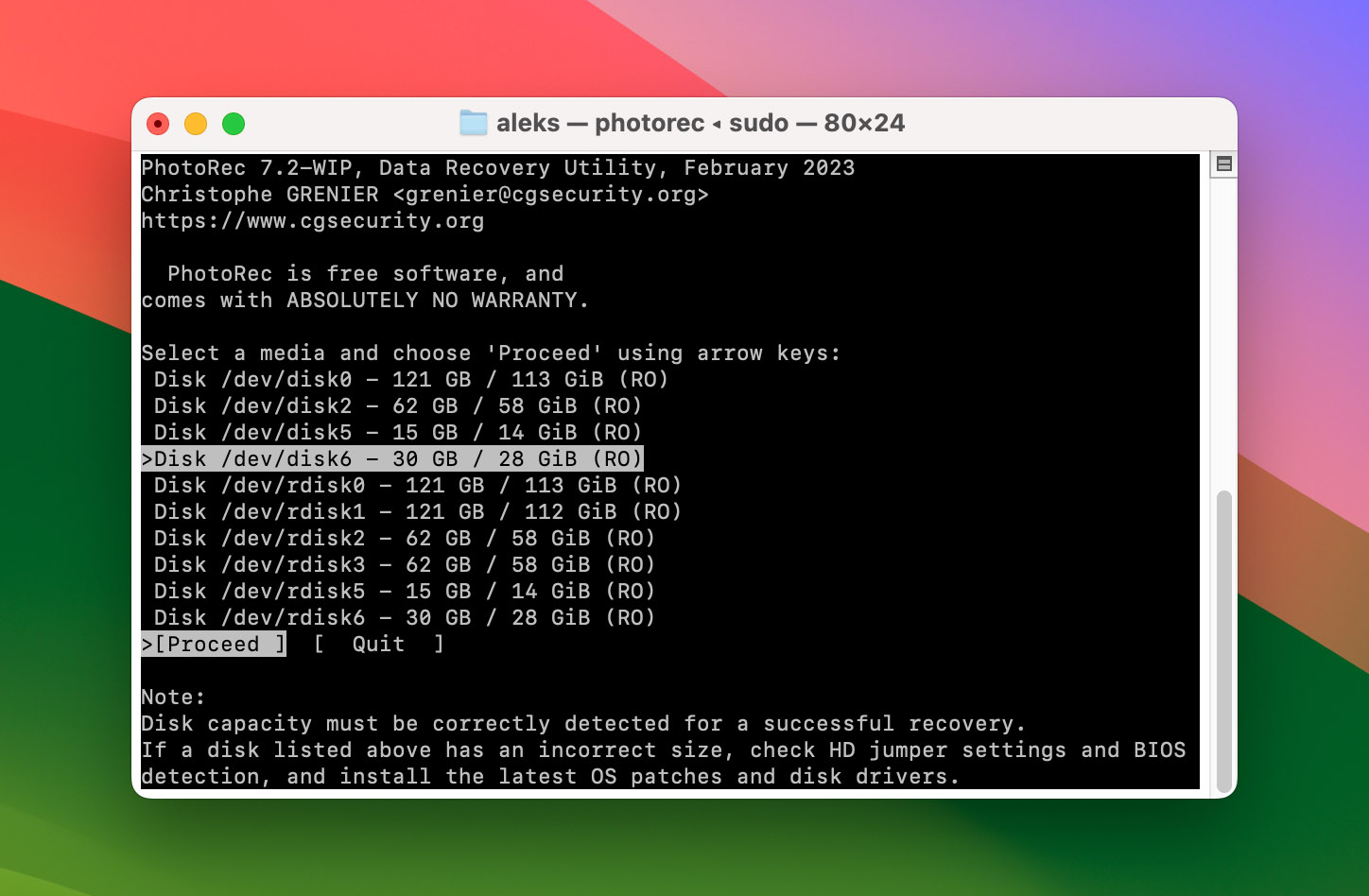
The install-on-a-different-drive and preview-before-recovering rules from the Windows section apply identically here; only the tool changes. For a free, file-system-agnostic option, install PhotoRec via Homebrew with brew install testdisk, then run sudo photorec, selecting the card as source, an unattached destination folder, and the FAT/exFAT file-system type. PhotoRec recovers by file signature rather than by directory entry, so files land in generic folders without their original names, a workable free fallback, though less convenient than dedicated software.
Recover on Android and Phone-Only Workflows
With no computer available, connect the card through a USB-C or micro-USB card reader, avoiding a phone’s built-in microSD slot if it has one, since some phones write cache files to inserted cards automatically. Use a file-recovery app built for external storage scanning, and preview before paying: mobile recovery apps carry the same kind of capped free tiers as their desktop counterparts.
Can I recover a formatted SD card on my phone with no PC?
Yes, with a card reader and a dedicated recovery app, though phone-based scans tend to run slower and less thoroughly than a full desktop scan. Treat it as a stopgap until you can reach a computer, if the data is worth the wait.
Verifying and Using Your Recovered Files
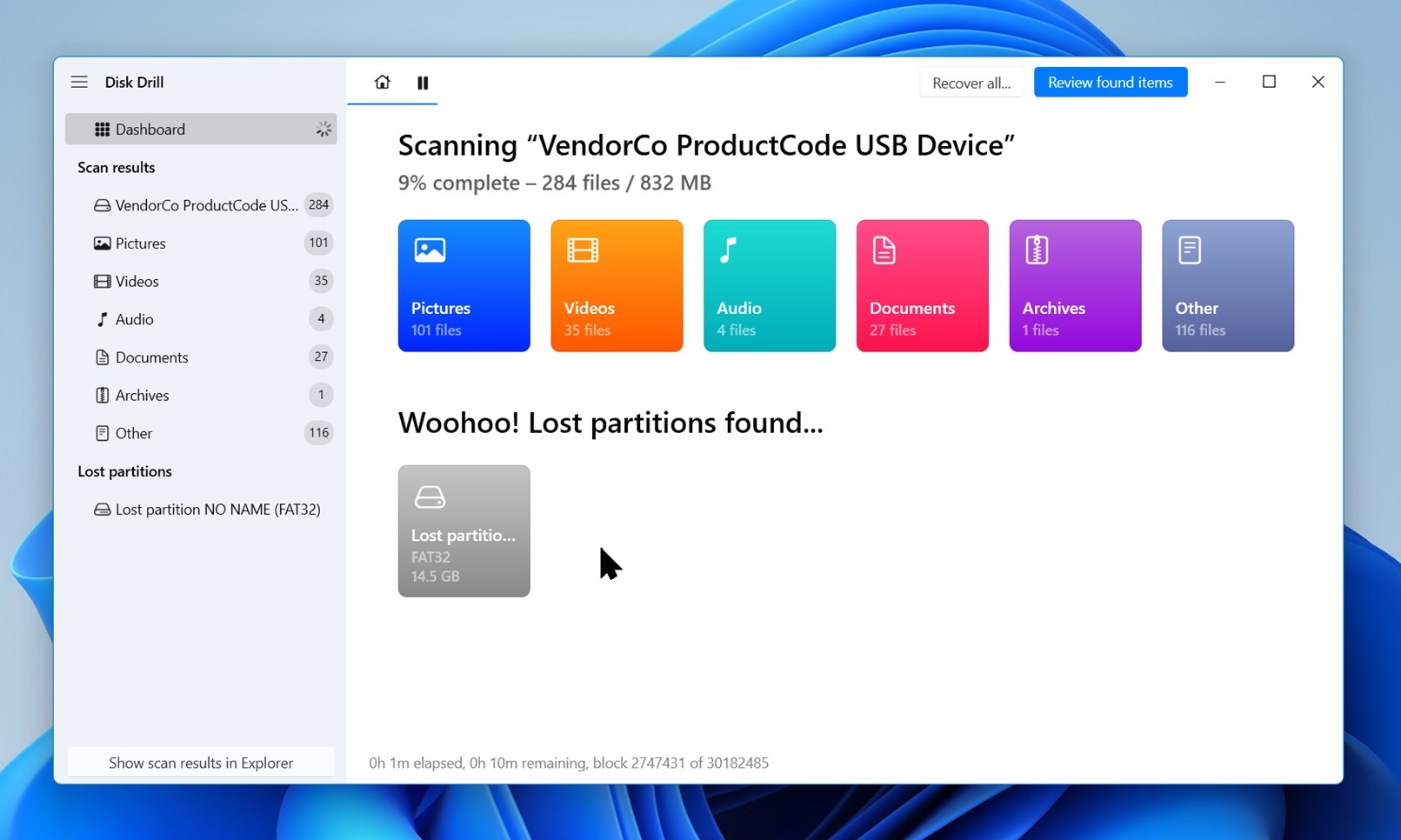
A tool finding a file is not the same as that file being intact. After recovering, open a sample from each format you got back, a photo, a video clip, a document, rather than assuming the whole batch is good. A garbled preview, a video with audio but no picture, or a file far smaller than expected all signal that part of the original data was already overwritten before you scanned. Save recovered files to a different drive than the card, never back onto the card you just recovered from.
When Free Tools Aren’t Enough: Cost, Capacity, and Data Value
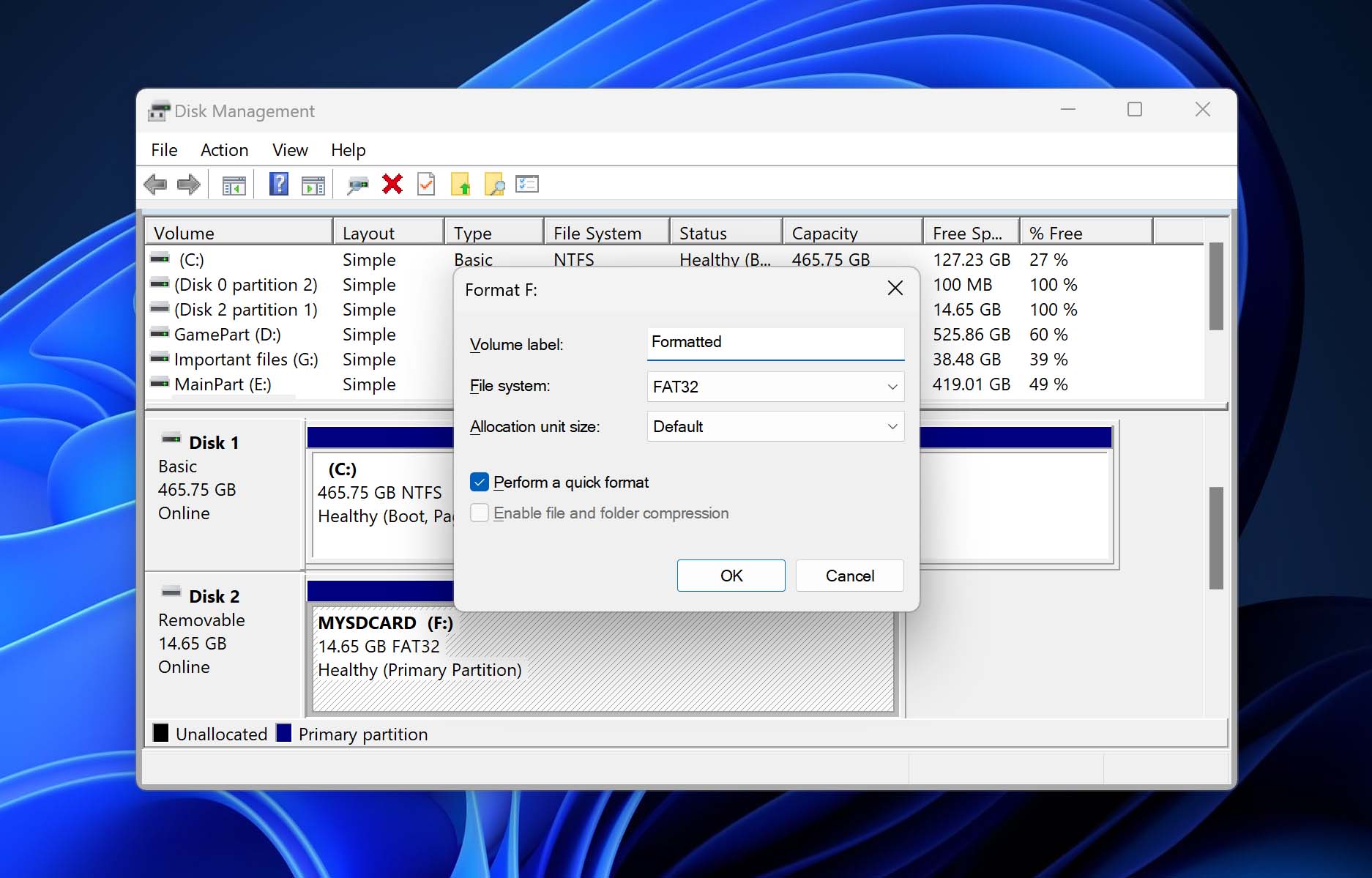
| Tool | Free-tier limit (checked live) |
|---|---|
| Disk Drill (CleverFiles) | 100 MB on Windows, per the vendor’s current free-recovery page |
| EaseUS Data Recovery Wizard | 500 MB by default, up to 2GB after a social-media share, per the vendor’s current page |
| Tenorshare 4DDiG | Vendor page still states 500 MB to 2GB with a share, but an independent March 2026 review reports the free tier recovering zero files, scan and preview only |
Match the card’s actual data against these caps before you scan, not after: a handful of photos or a small document folder fits inside every tier listed here, while a card holding hours of 4K footage will blow past all three, and it’s cheaper to know that before you spend an hour scanning than after a scan finishes and asks you to pay.
When to Stop DIY and Call a Professional

- The card isn’t detected by any computer or reader. Recovery software needs a readable card; an undetected card is a hardware problem.
- Physical damage is visible, cracking, bending, or water or corrosion marks.
- Two or more different tools return zero recognizable files after a complete scan, not just an empty preview.
- The data is regulated, client records, health information, or financial data, and your organization needs a documented, forensically sound process instead of a best-effort consumer scan.
For that last case, NIST’s SP 800-88 Rev. 2 defines Clear, Purge, and Destroy as the recognized U.S. federal sanitization levels, and organizations bound by GDPR, CCPA, or HIPAA should treat a formatted card holding regulated data as a potential incident needing documentation and legal or compliance input before repeated recovery attempts. One nuance for that audience specifically: SD cards are flash memory, and flash storage uses wear-leveling that spreads writes across the chip in ways a single-pass overwrite doesn’t fully reach. That affects both recovery odds after a consumer “secure erase” and how defensible a DIY sanitization actually is afterward.
Why do some recovered photos look corrupted or won’t open?
Usually because part of the file’s data was already overwritten by the time you scanned, or a large video was split across storage in a way the tool couldn’t fully reassemble. This shows up more with continuous 4K video than with individual photos: a photo either survives whole or doesn’t, while a long clip only needs one overwritten segment to break playback.
How to Prevent This Next Time
Use the card’s physical lock switch during transfer, not only during a crisis. Keep a second card in rotation so a wrong format never touches your only copy of anything, and back up before you format, not after.